
How to Register in the Gosuslugi RuID App: Step-by-Step Guide for Foreigners with Pictures
Starting in 2025, many foreign citizens must register through the Gosuslugi RuID mobile app before or shortly after entering Russia. This digital registration is a legal requirement linked to new migration rules — failing to complete it can affect your ability to enter the country or access essential services. This step-by-step guide walks you through the entire process with screenshots, from downloading the app to completing registration successfully.
Why Registration Is Required
Registration is needed for quick access to your documents, obtaining government services, electronic authorization of your trip abroad, and for the state to securely and quickly verify your identity and the purpose of your visit. Without a QR code for entry, crossing the border will be impossible.
Without registration, you may not be allowed to enter Russia . Check whether you are required to register based on your nationality and travel purpose. This is part of the new 2025 migration rules .
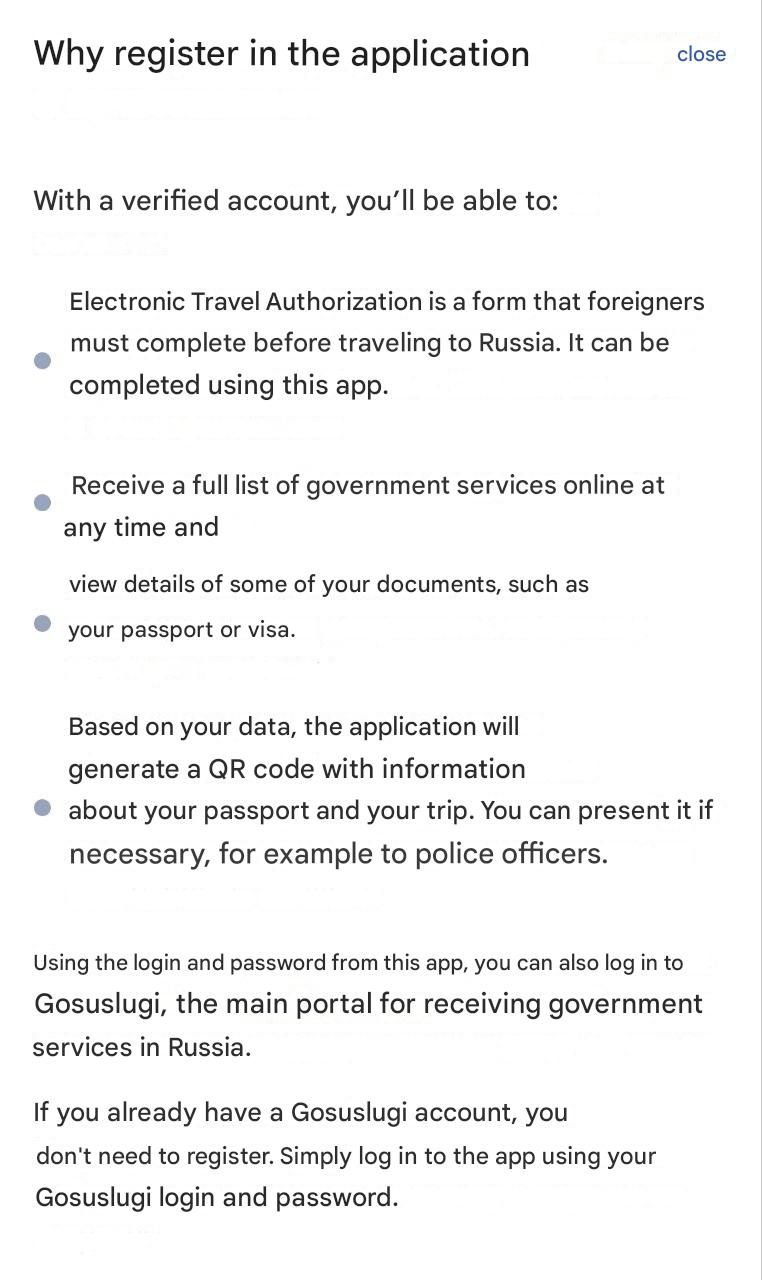
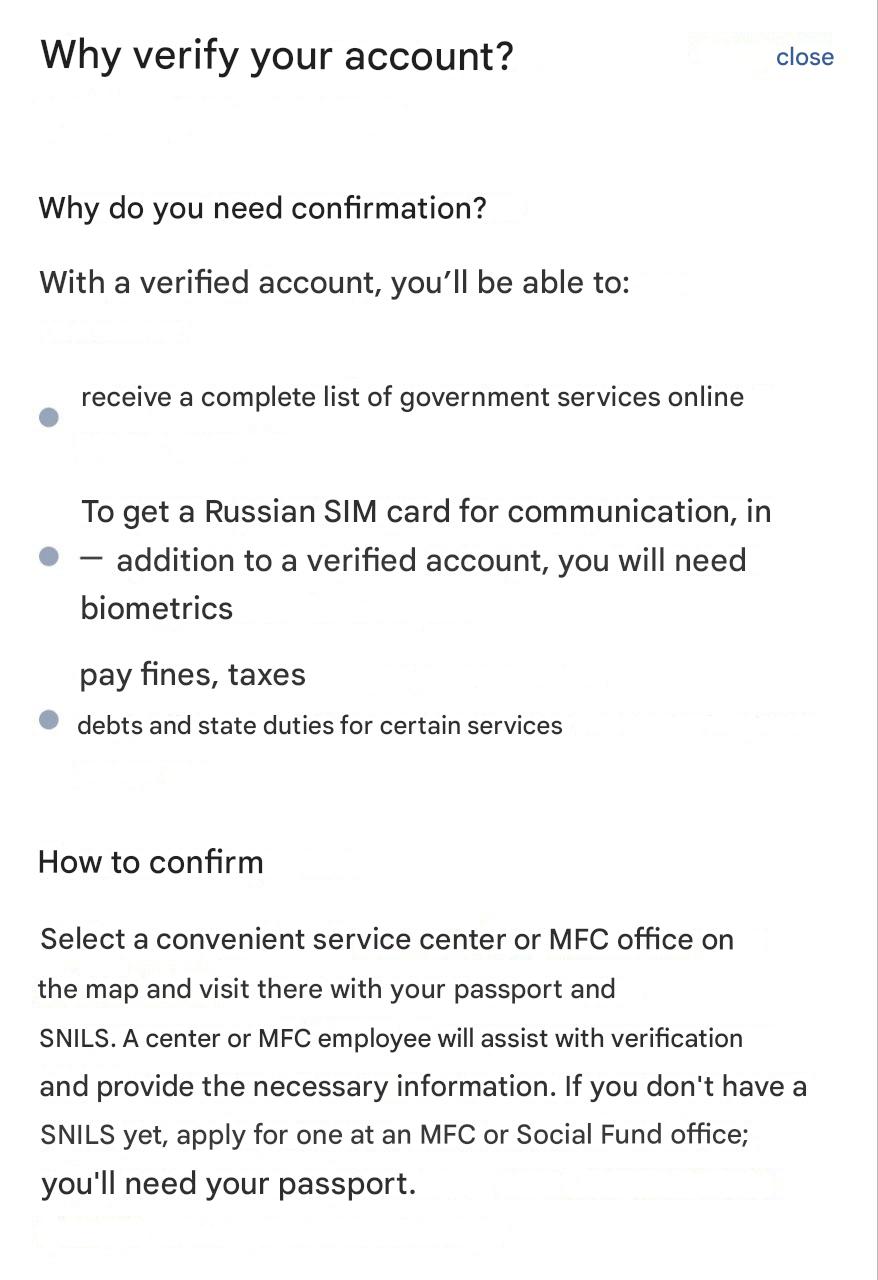
You can also learn more about confirming your account in the app during registration.
Where to Download the App
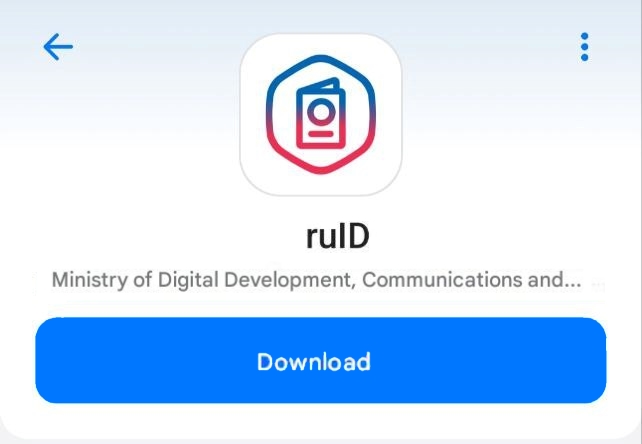
Download the “Gosuslugi RuID” app from official stores:
App Store
Google Play
RuStore
AppGallery
. After installation, open the app and choose your preferred interface language.
How to Register
Download and Install the App
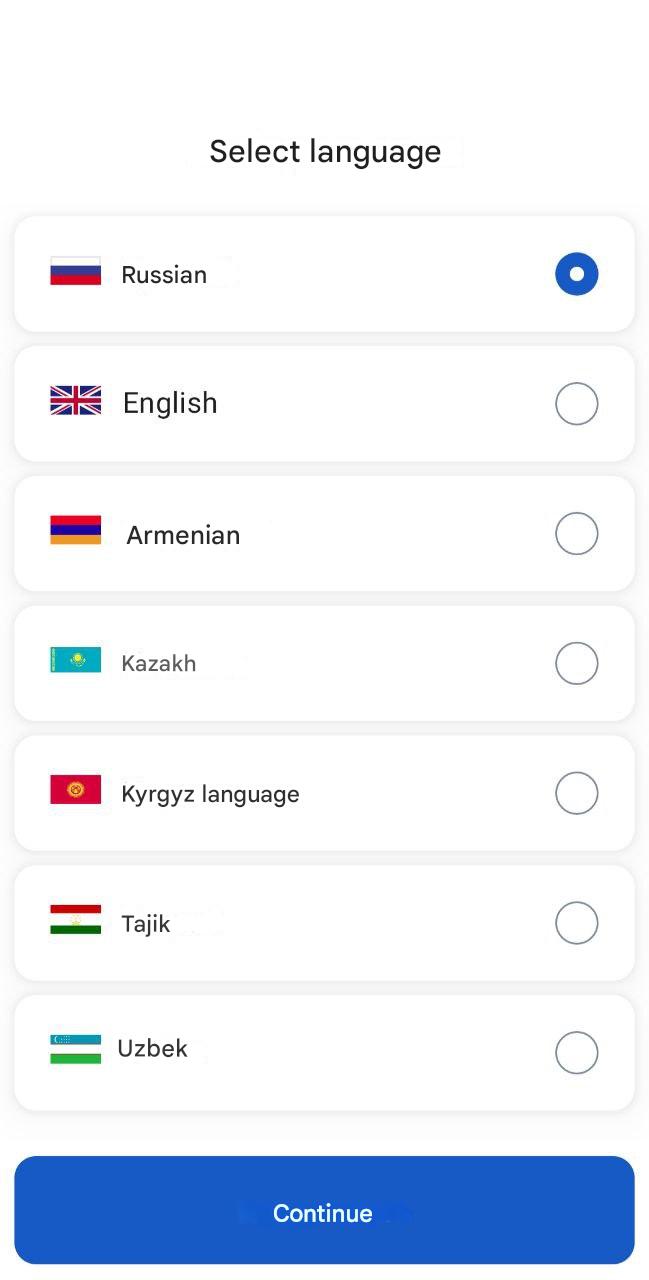
Launch and Select Language
Open the app and select your preferred interface language. Options include English, Armenian, Kazakh, Kyrgyz, Russian, Tajik, or Uzbek.
Grant Necessary Permissions
Choose Registration Method
Log in through “Gosuslugi” or click “Register” if you do not have a Gosuslugi account.
Available login methods in Gosuslugi:
- by username and password or via biometrics instead of a password.
- by QR code or digital signature certificate (only via computer).
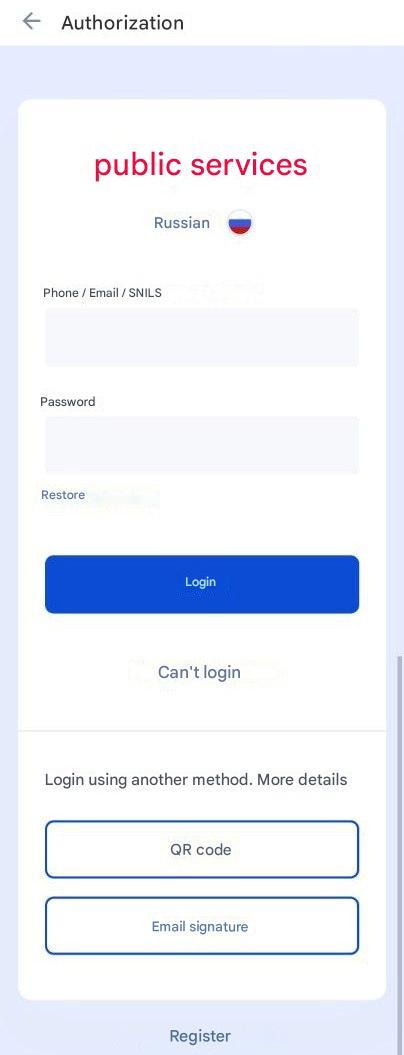
Login by Username and Password
- Go to the login page.
- Enter your username — phone number, email, or SNILS.
- Enter your password. If forgotten, reset it.
- Click “Login.”
Login via Biometrics
- Enable this option in your personal account in advance. Available only from a computer with a camera.
- Log in to Gosuslugi with your username and password to save the data in the browser and enable biometric login. After that, biometrics will appear as the main login method. If you switch browsers, you must log in once with a password to reactivate biometric login.
- Click “Login with biometrics” and allow camera access.
- Remove hats, sunglasses, and hair from your face.
- Position your face in the frame, click “Done,” and wait for identity confirmation.
- Confirm login with the previously enabled method.
Login via QR Code
- Install the Gosuslugi app in advance and log in with your account.
- On a computer, go to the login page and select: Login another way → QR code.
- Open the Gosuslugi app, tap “GosScan” in the top-right corner (available in version 11.0+).
- Scan the QR code. If expired, refresh it. Confirm login on the other device.
Login via Digital Signature Certificate
- Enable this option in your account in advance. Requirements: a qualified digital signature certificate (on a token), Gosplugin, crypto provider (if needed), and the token PIN code.
- Go to the login page.
- Select: Login another way → Digital Signature.
- Connect the token with the certificate and click “Continue.”
- Choose the certificate.
- Enter the PIN code if required.
Registration Without a Gosuslugi Account
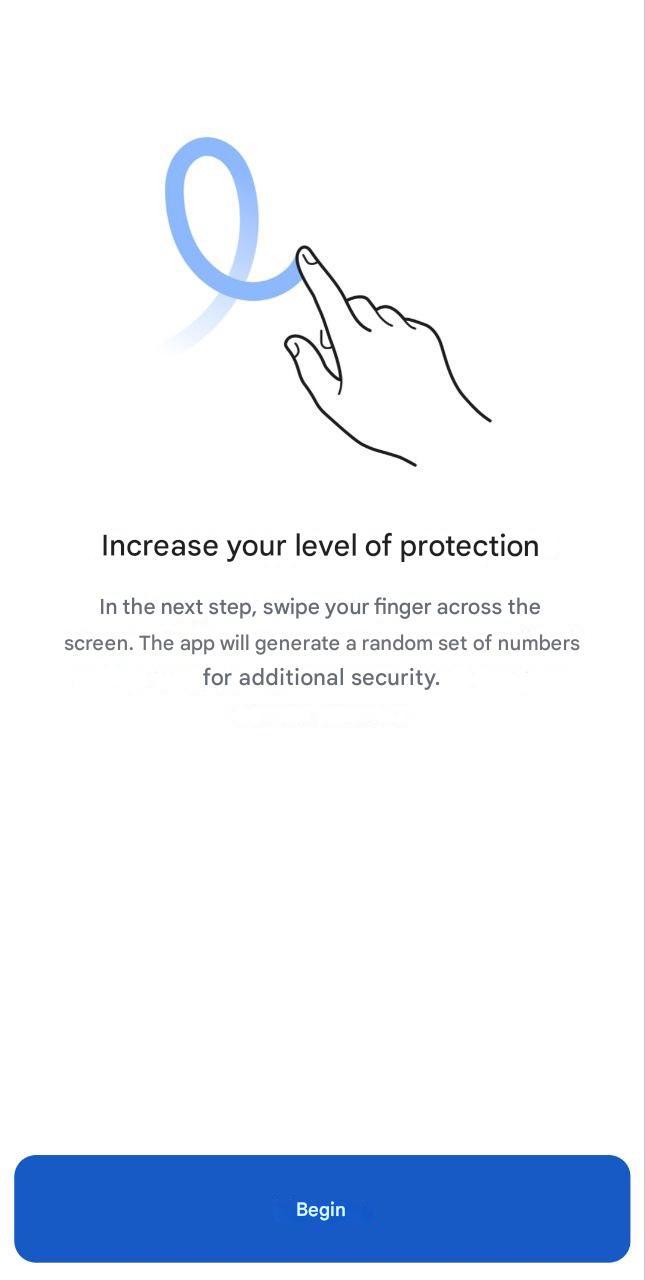
- Click “Register” and follow the system prompt to create a unique numeric pattern by swiping your finger on the screen.
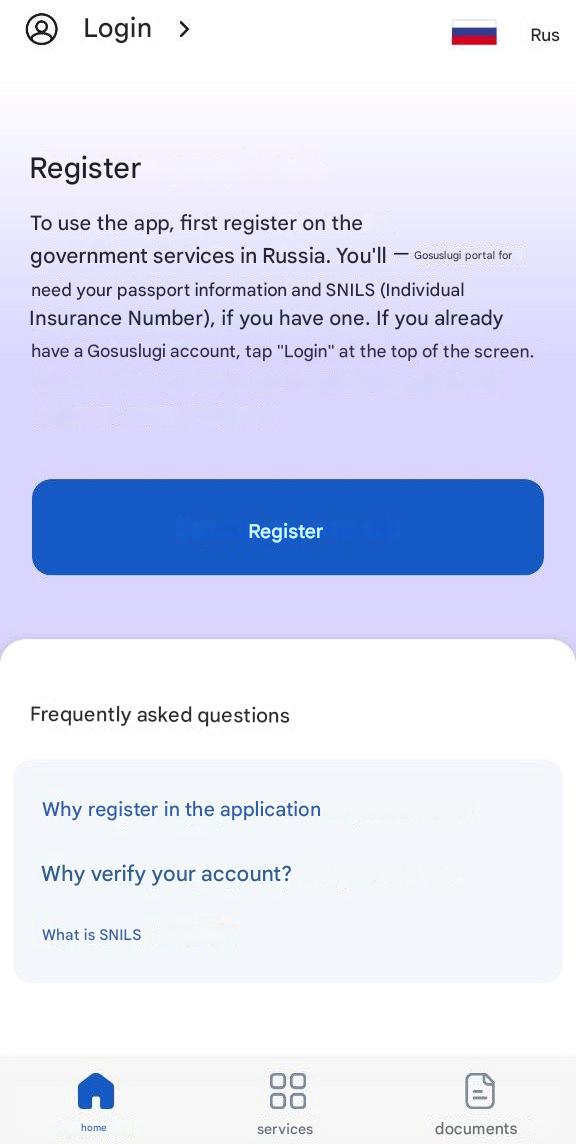
- Answer whether you have a SNILS.
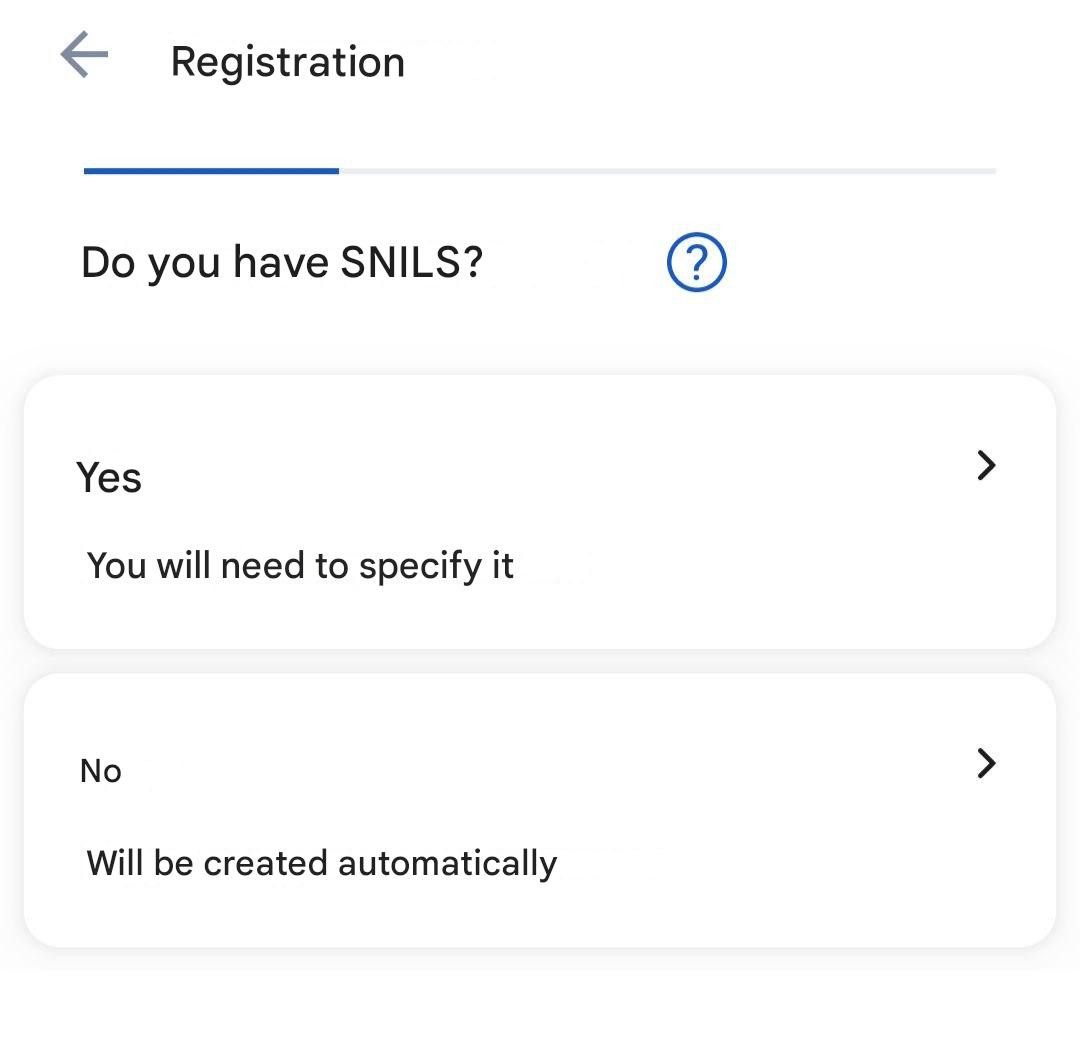
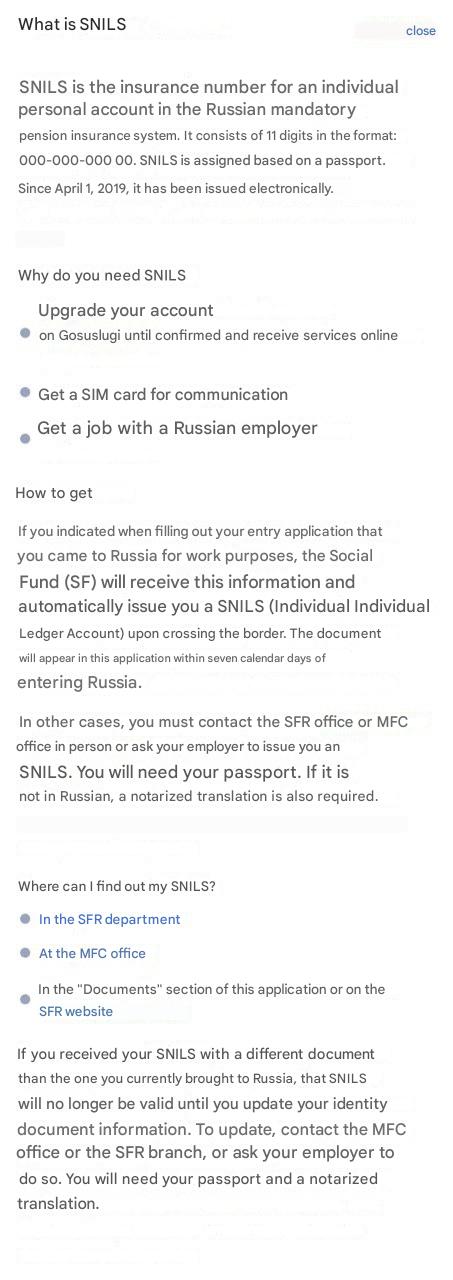
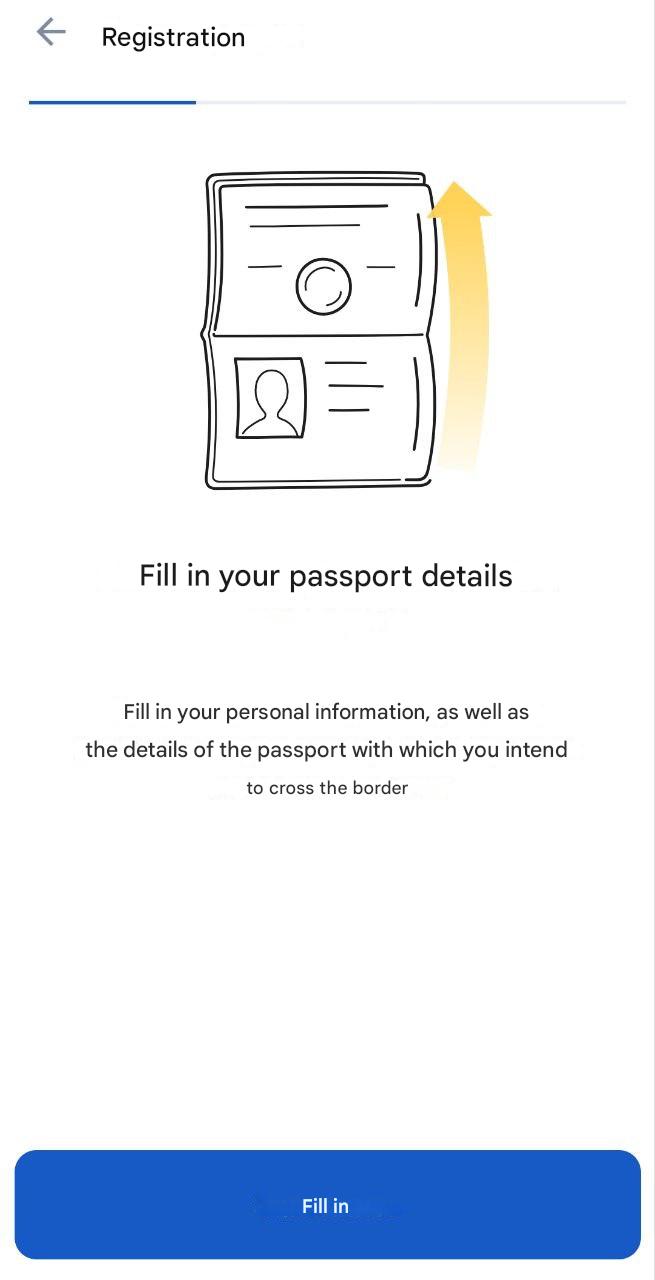
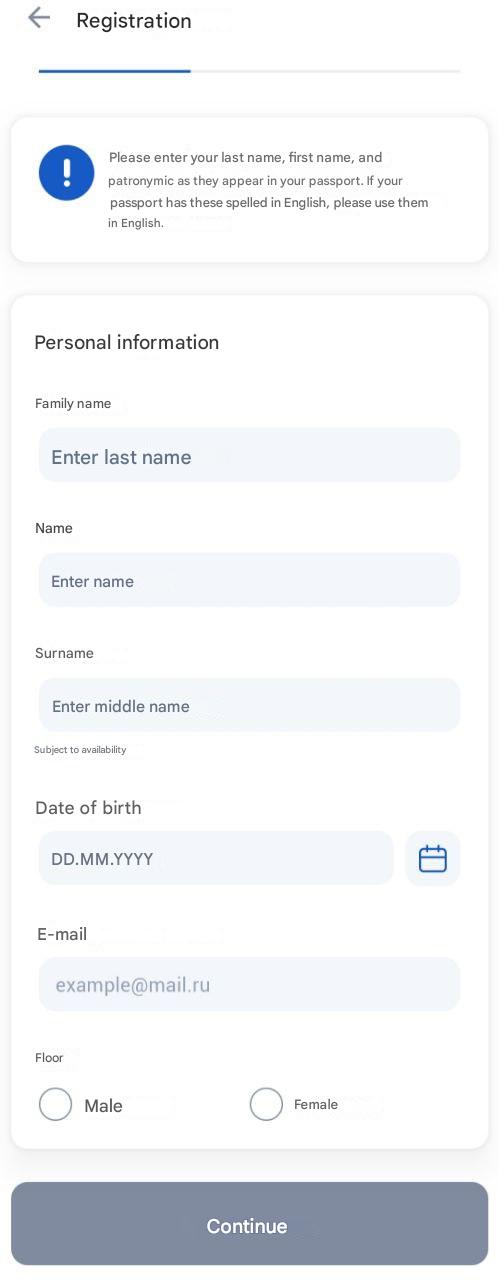
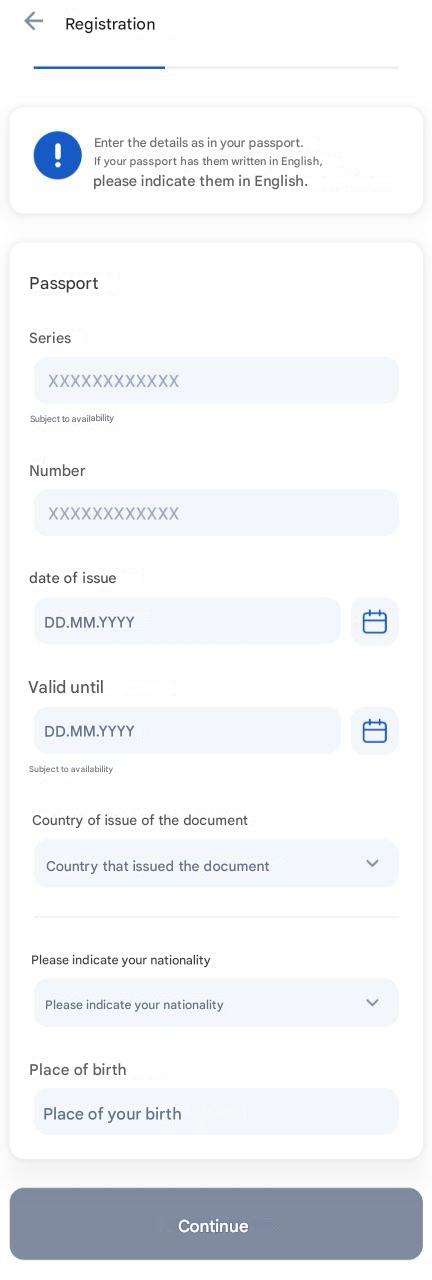
- Fill in your passport details.
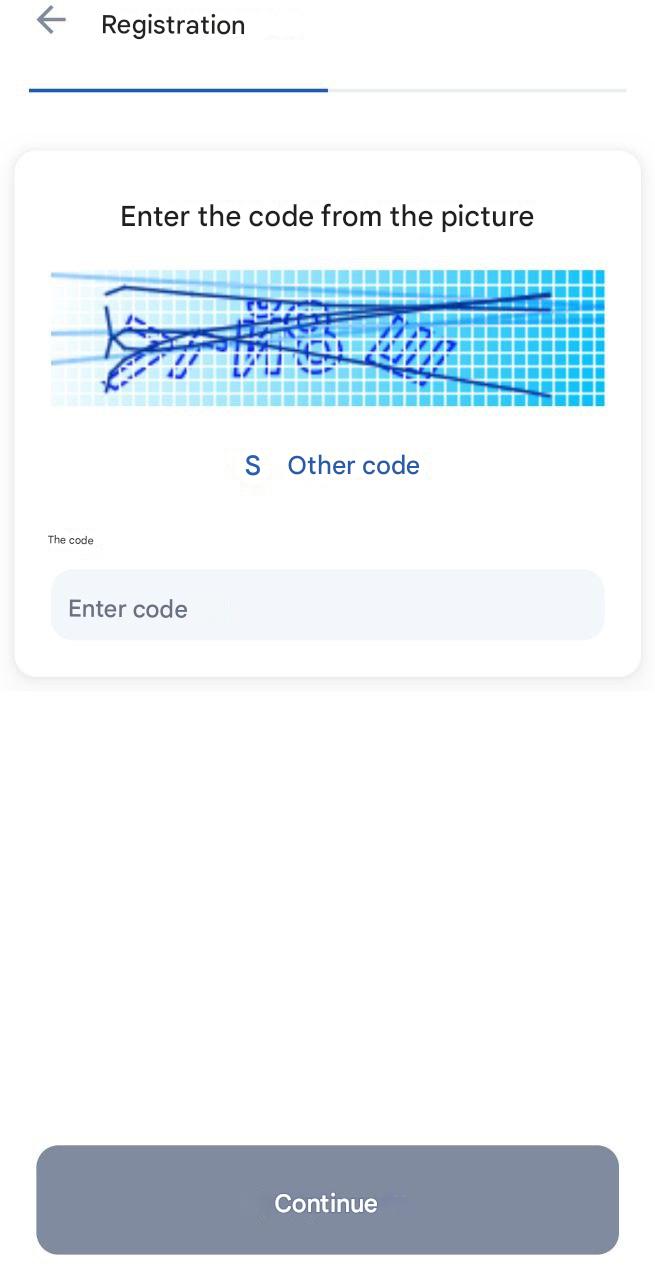
- Confirm you are not a robot by entering the characters from the image.
- Confirm your email address by clicking the link sent to your mailbox.
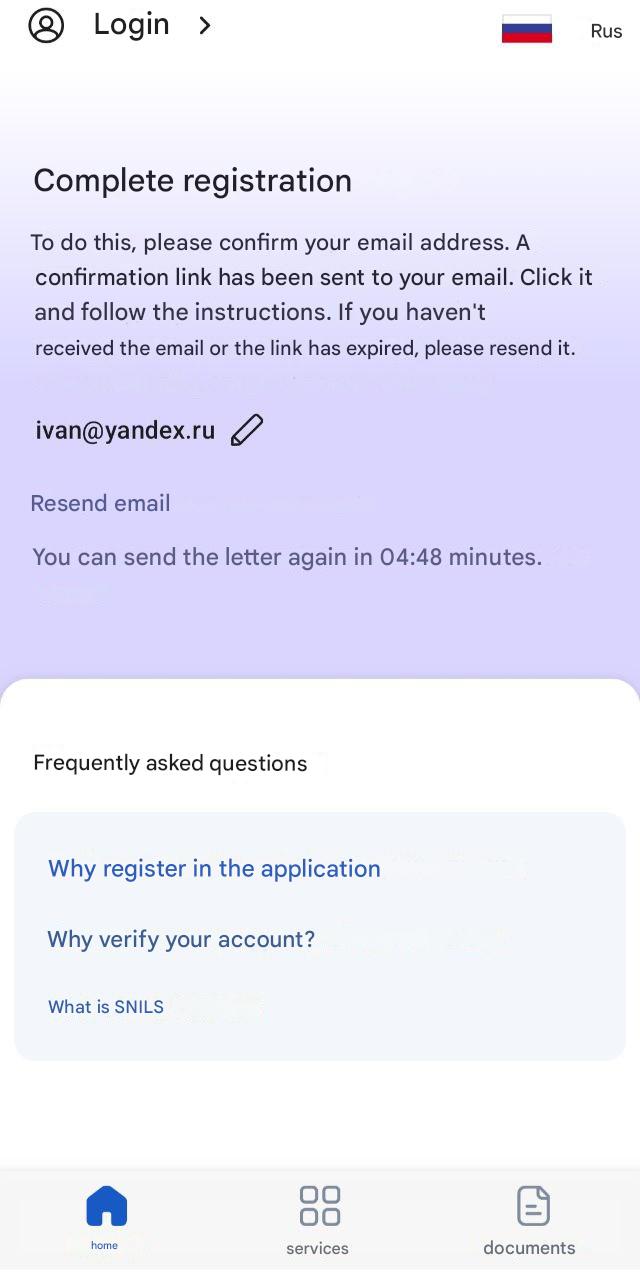
⚠️ Note: If you already have a Gosuslugi account but don’t remember the password and try to register in RuID as a new user, issues may occur. The app will detect your existing account via SNILS or email. To complete registration, you’ll need to provide different details or reset your password.
After completing registration, you will have a digital profile as a foreign citizen. With it, you can submit entry applications to Russia (at least 72 hours before crossing the border), check for entry restrictions, and access government services online.
What to Do After Registration
Your application will be reviewed by the Ministry of Internal Affairs. The status and result will appear in the app. Once confirmed, you can use RuID for entry and for accessing government services.
If issues occur, the app will provide guidance. In case of technical failures, contact support.
You should also prepare for biometric data submission at the border and complete migration registration after arrival . For more about the full Gosuslugi RuID ecosystem, see the Gosuslugi RuID account signup guide .
Frequently Asked Questions
Is the RuID app available in languages other than Russian?
Yes. The app supports multiple languages. When you first launch it, you can select your preferred language including English, Armenian, Kazakh, Kyrgyz, Russian, Tajik, or Uzbek.
What if the app doesn’t work on my phone or I can’t download it?
The app requires Android 7.0+ or iOS 15+. If your device is not compatible, you may be able to register through the Gosuslugi website or seek assistance at a migration office after arrival.
Do I need to register before I fly, or can I do it after arrival?
It is strongly recommended to register before departure. Some border checkpoints may require completed registration before allowing entry . Don’t wait until the airport.
What documents do I need to register in the app?
You will need your passport (the one you’ll use to enter Russia), a working phone number that can receive SMS, and an email address. Have your passport ready to scan or enter data manually.
Next Steps
- Register your trip 72 hours before entry and get your QR code.
- At the border, complete biometrics and receive your migration card .
- Complete migration registration within 7 days.
- Apply for a work patent within 30 days.
- Pass a medical exam and get health insurance .
Source: